Quick answer: on Windows 11, open the Snipping Tool and switch it to video mode to record a region of your screen. To record a single game or app window, press Win + Alt + R with Xbox Game Bar. For long or complex recordings, use OBS Studio. If you record tutorials and want viewers to see every click, a recorder that shows the pointer clearly (like PointerStick) saves editing time.
1. Snipping Tool (Windows 11)
The Snipping Tool isn't just for screenshots anymore. In Windows 11, switch it from the camera icon to the video camera icon, choose New, drag the area you want to record and press Start. Recent versions can include system audio and your microphone. Recordings are MP4 files that you can save from the preview window.
- Good for: quick clips of part of the screen, no installs.
- Limits: basic options, no built-in click highlighting, and the editing tools are minimal. Features depend on your Snipping Tool version, so update it from the Microsoft Store if you don't see video mode.
2. Xbox Game Bar
Press Win + G to open Game Bar, or press Win + Alt + R to start and stop recording right away. Clips are saved to Videos\Captures by default.
- Good for: games and single apps, with very little setup.
- Limits: it records one app window, not your whole desktop, and it can't record the desktop itself or File Explorer. That makes it awkward for tutorials that move between apps.
3. PowerPoint's screen recording
In PowerPoint for Windows, go to Insert → Screen Recording, select an area and record. The video is inserted into your slide, and you can right-click it to save it as a separate file.
- Good for: putting a short demo straight into a presentation.
- Limits: you need PowerPoint, and it's a roundabout way to make standalone videos.
4. Clipchamp
Clipchamp, Microsoft's video editor, ships with recent versions of Windows 11 and includes a screen and camera recorder plus a full timeline editor. It's a good fit if you want to record and then edit with titles, music and transitions. Check its current limits on recording length and export options for the plan you use.
5. OBS Studio
OBS Studio is free, open source and extremely capable: multiple sources, scenes, webcam overlays, audio mixing and live streaming. Add a Display Capture source to record your whole screen. The trade-off is setup time. There are many settings to learn, and OBS doesn't include an editor.
6. PointerStick (Premium)
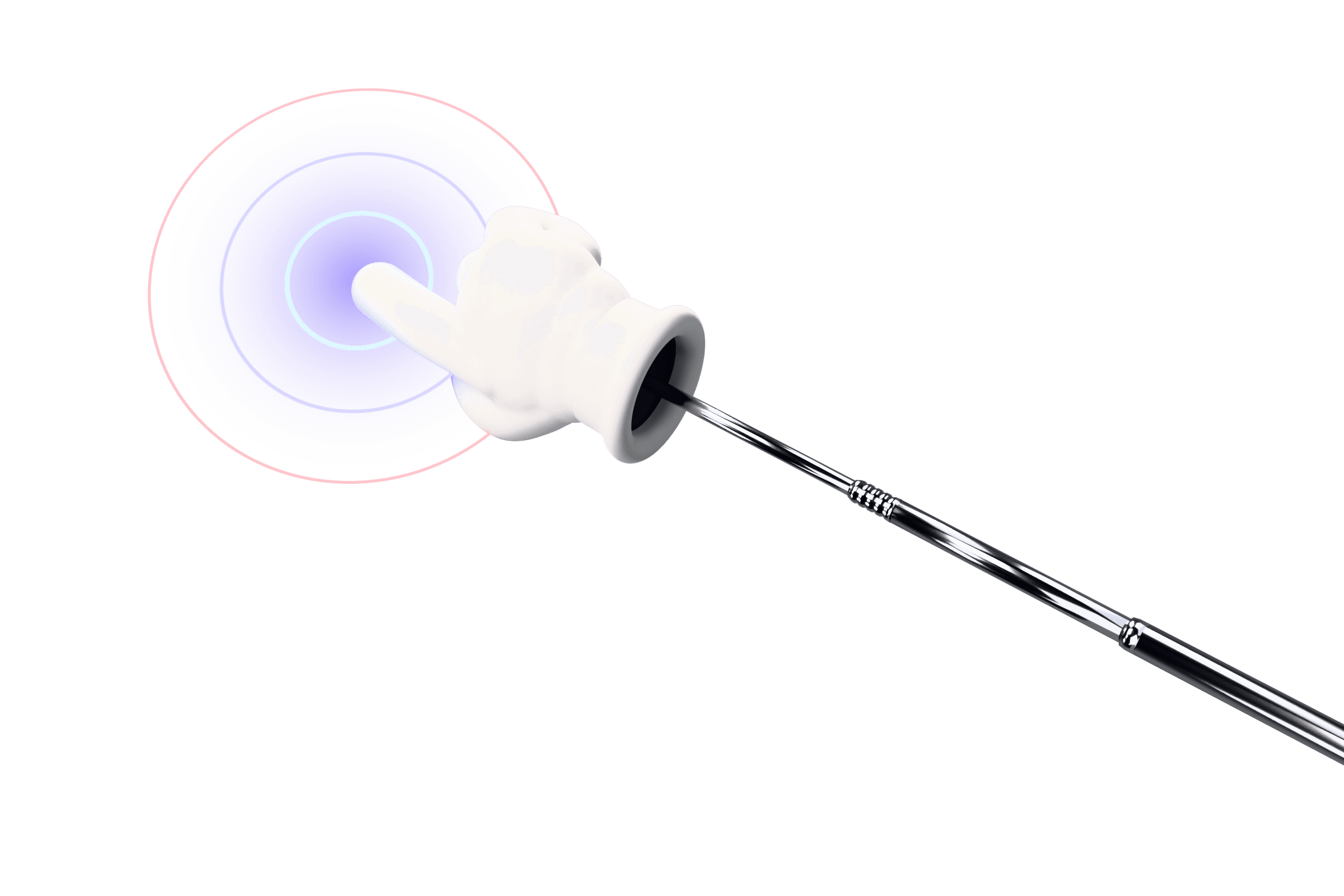
PointerStick (that's us) is a pointer tool first: your cursor becomes a 3D glove on a stick that taps the screen when you click. Premium adds recording built around that pointer. Press Ctrl + Alt + R to record the monitor under your cursor or a dragged region after a short 3-2-1 countdown. You choose the audio output and microphone (with level meters), can pause and resume with Ctrl + Alt + Shift + R, and can add an optional webcam bubble. The pointer and its click effects are part of the video, and the control pill stays out of it. When you stop, a simple editor opens so you can trim the ends or cut out a section, then export the original MP4, a smaller 720p MP4 or a GIF. Videos go to Videos\PointerStick.
It isn't a replacement for OBS or a full editor. It's for quick, clear recordings where viewers need to follow your clicks. The pointer itself is free; recording, screenshots and every style are in Premium ($12.99 once).
Which one should you use?
| Tool | Records | Audio | Editing | Cost |
|---|---|---|---|---|
| Snipping Tool | Screen region | Recent versions: system + mic | Minimal | Free (built in) |
| Xbox Game Bar | One app window | System + mic | Basic trim | Free (built in) |
| PowerPoint | Screen region | System + mic | Basic trim | Needs Office |
| Clipchamp | Screen or tab, camera | System + mic | Full editor | Free tier, paid plans |
| OBS Studio | Anything | Full mixer | None | Free |
| PointerStick | Monitor or region, pointer included, optional webcam | System + mic, pause/resume | Trim and cut; MP4 or GIF | Free pointer; Premium $12.99 once |
Tips for better screen recordings
- Close what you don't need. Notifications and open tabs end up in the video. Turn on Do not disturb first.
- Make the pointer obvious. Viewers lose a small cursor, especially on phones. See screen recording with a highlighted cursor.
- Record a little extra at both ends, then trim. It's easier than starting perfectly.
- Check audio before a long take. Record five seconds and play it back.