Why the normal cursor fails during talks
Presenting is mostly pointing: “this number here”, “click this button”, “notice the dip in Q3”. The arrow cursor was designed to be unobtrusive while you work, which is the opposite of what an audience needs. Three things make it worse:
- Scaling. Projectors and TVs often run at a lower resolution or get scaled down, and video calls compress your screen into a small, blurry rectangle.
- Speed. A small arrow moving quickly is very hard to track for someone who isn't controlling it.
- Clicks are invisible. Your audience can't see when you click, so they miss the cause of whatever just changed on screen.
How PointerStick helps
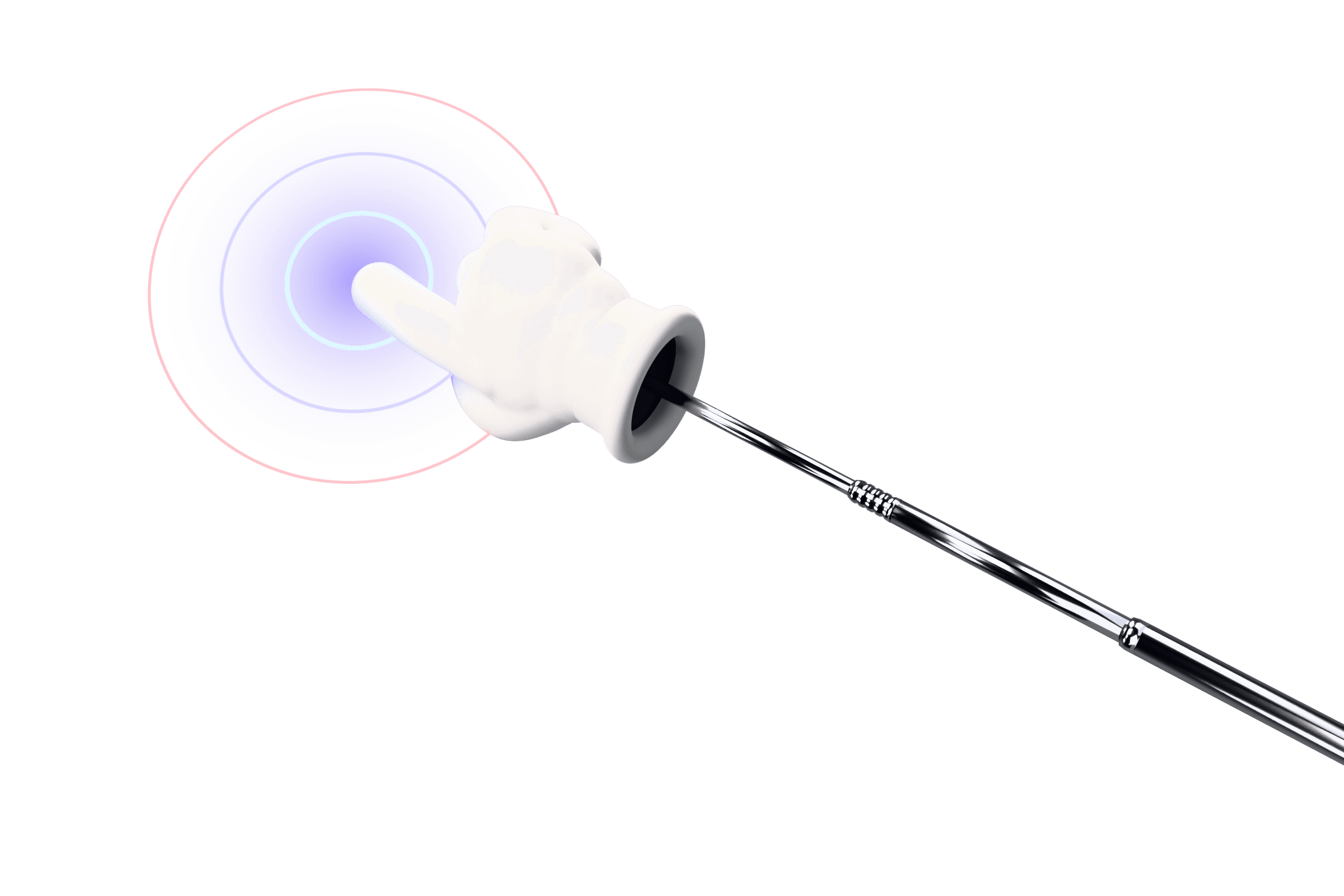
Press Ctrl + Alt + P and your cursor becomes a 3D cartoon glove on a telescoping stick. It's big enough to see from across a room, its fingertip marks the exact click point, and when you click the hand pushes in like it's tapping glass, with a ripple and a soft tap sound. Everyone sees what you clicked and when.
- Works in every app, not just your slides: switch from PowerPoint to Excel, a browser or a live product demo without changing tools.
- Clicks pass through, so you control your apps normally while it's on.
- Every monitor, including the projector or second display you present on, at the correct scaling.
- One hotkey to put it away when you go back to editing.
PowerPoint's laser pointer vs a real pointer
PowerPoint has a built-in laser pointer (press Ctrl + L during a slideshow). It's handy, but it only exists inside the slideshow window and it doesn't show clicks. The moment you alt-tab into a spreadsheet or a browser to show something live, it's gone. PointerStick sits above everything on your screen, so the pointer stays consistent through the whole talk.
Tips for presenting with PointerStick
- Toggle it on before you share. Start your talk, then press the hotkey once. Your audience sees the pointer appear, which is a nice little “here we go” moment.
- Pick the size for the room. In the Locker you can make the pointer smaller for 1:1 calls or larger for big rooms.
- Keep the effects calm for serious talks. The free Ripple impact and Glass Tap sound are subtle. Save the Comic POW! impact for the all-hands.
- Mute the click sound if you're on a call where you'd rather keep audio clean; the visual tap still shows every click.
- Share your full screen in Zoom, Teams or Meet (not a single window) so the pointer overlay is included in what people see.
Good for design reviews and demos too
In a design review, “that button” is ambiguous until you point at it. A fingertip with a visible tap removes the guesswork, especially when people are watching a compressed screen share. The same goes for sales demos and product walkthroughs: viewers follow the hand naturally, which keeps them oriented as you move through the product.
Want to see it now? On a desktop browser, the PointerStick homepage turns your mouse into a live demo of the pointer.