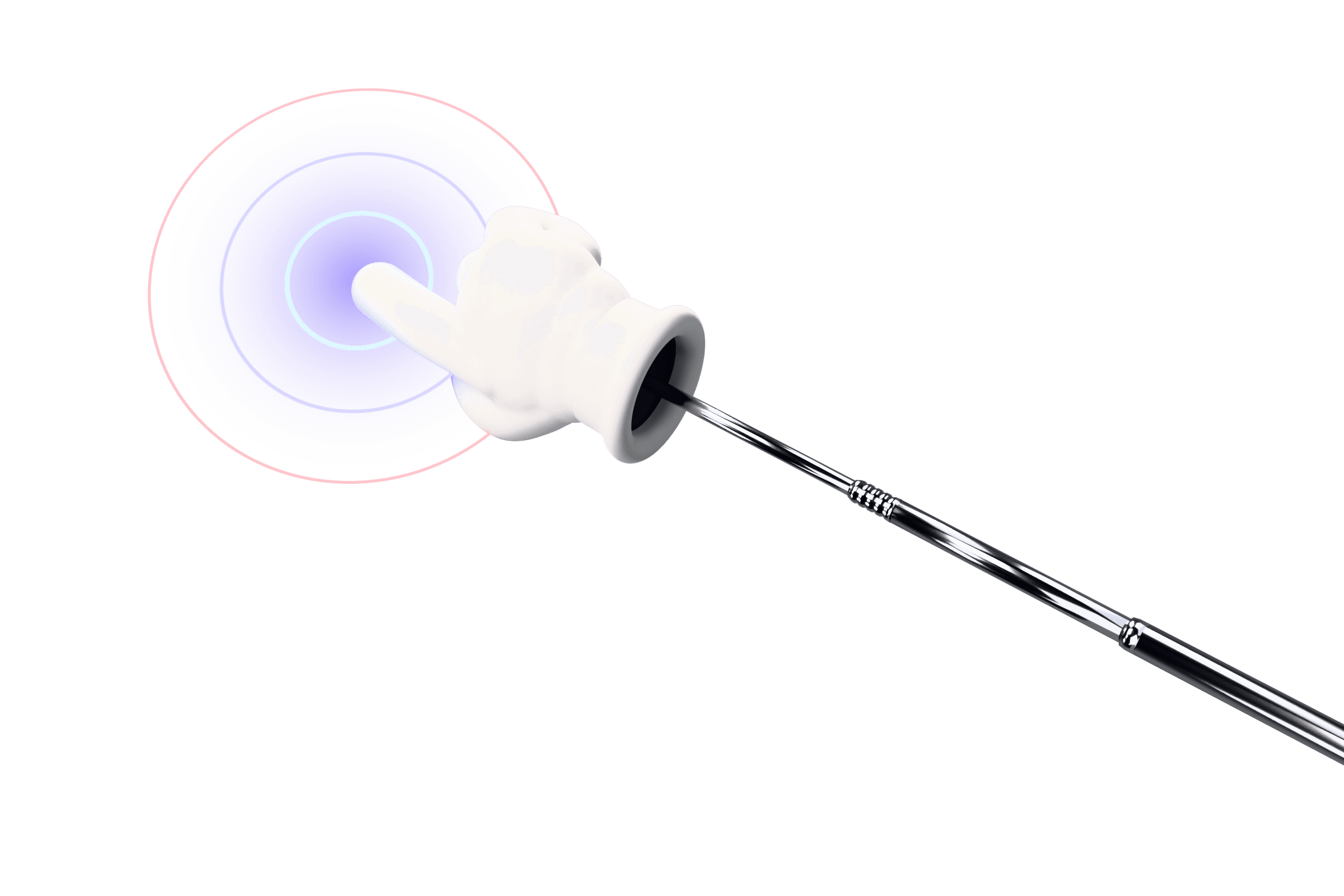
Why streamers use a custom pointer
- Visibility at stream bitrates. Streams are compressed hard. A large, high-contrast pointer stays readable where a tiny arrow smears into the background.
- Clicks become moments. A tap with a confetti burst or a comic “POW!” gives chat something to react to.
- It's part of your brand. Match your glove and trail to your channel colors. A neon wireframe glove with a plasma saber stick says something different from bubblegum pink with hearts.
OBS setup
- Use a Display Capture source for the screen you point on. Overlays like PointerStick are drawn on top of other windows, so they appear in display capture but not in Window Capture or Game Capture.
- In the Display Capture properties, you can uncheck Capture Cursor. PointerStick hides the system cursor while it's active, but turning this off avoids a stray arrow if you toggle the pointer off mid-stream.
- If you want click sounds on stream, make sure your Desktop Audio source is enabled. Prefer silent clicks? Mute them in the Locker, or pick the free Silent sound.
- Bind the hotkey (Ctrl + Alt + P by default) to a Stream Deck button or macro key so you can whip the pointer out mid-sentence.
Skins that look great on stream
- Trails: Rainbow Ribbon and Fire are big and readable; Sparkle Dust is subtle.
- Impacts: Comic POW!, Confetti and Electric are made for reactions; Ripple is the clean default.
- Sounds: Bonk, Rubber Duck and Pew Pew get a laugh; Glass Tap and Wood Knock stay out of the way of your mic.
Try any combination live on the styles page before you buy. Your mouse becomes the demo pointer, so you can see exactly what chat would see.
For coding and tutorial streams
On coding streams, viewers constantly ask where you clicked or which file you opened. A visible tap answers that before anyone types the question. The same tips from our screen recording guide apply: capture the full display, keep trails off during detailed work, and point before you click.